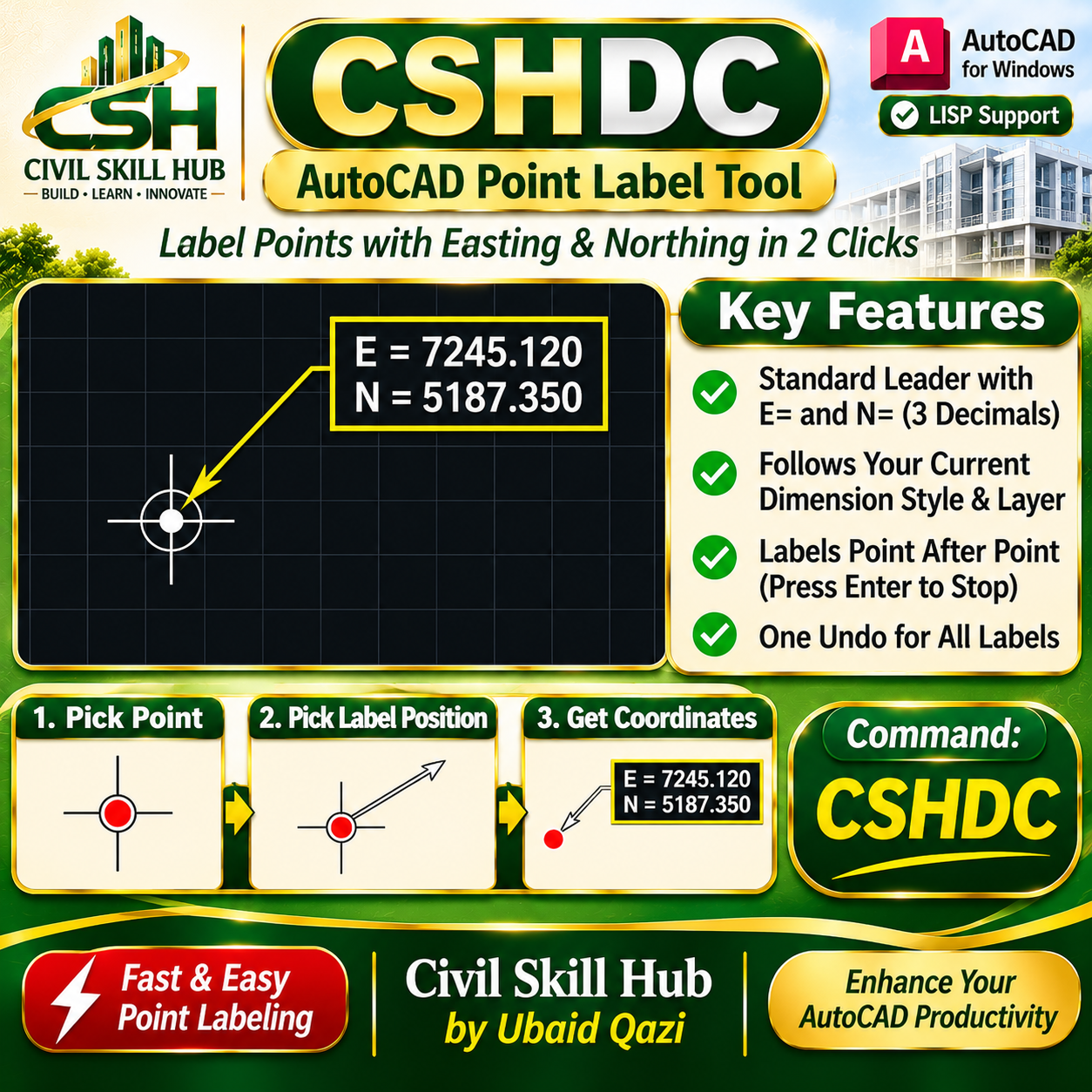
Download CSHDC, a free AutoCAD LISP for coordinate leader labeling that lets civil engineers, land surveyors, and CAD draftsmen annotate Easting and Northing coordinates on any drawing in just two clicks.
Manually checking point coordinates with the ID command and typing multi-line leader text takes valuable drafting time and often leads to transcription errors. With CSHDC, you simply click the target point and click where you want the label placed—the routine immediately draws a clean, standard AutoCAD leader displaying the exact Easting (E=) and Northing (N=) on two lines.
Key Features of This Free AutoCAD LISP for Coordinate Leader Labeling
- Two-Click Leader Creation: Pick any point on your layout, road alignment, or plot boundary, pick the text placement point, and get an instant coordinate callout.
- Standard Leader with E= and N= Format: Places Easting (
E=) and Northing (N=) coordinates rounded to 3 decimal places on two clean lines. - Matches Your Dimension Style & Layer: Automatically inherits arrow size, arrowhead style, text font, text height, and overall scale from your active AutoCAD Dimension Style and current layer.
- Continuous Point-by-Point Workflow: Keeps prompting for the next point in a continuous loop so you can label dozens of corners, columns, or survey stations without restarting the command.
- Individual Single-Step Undo: Each placed coordinate leader is grouped as a single
UNDOstep, making it easy to step back one label at a time if you misclick.
Step-by-Step Guide: How to Use CSHDC in AutoCAD
- Load the Routine: Open your drawing in AutoCAD for Windows and run the
APPLOADcommand. Browse to your downloadedCSHDCfile and click Load. - Check Dimension Style & Layer: Make sure your desired Dimension Style (
DIMSTYLE) and target layer are active so the leader text height and arrow size match your sheet scale. - Run the Command: Type
CSHDCin the command line and press Enter. - Pick Point & Label Location: Click the exact point you want to coordinate (using Object Snaps like Endpoint, Center, or Node), then click where you want the leader text to appear.
- Continue or Finish: Keep picking subsequent points to label them rapidly, or press Enter / Spacebar to exit the command cleanly.
Why Use a Free AutoCAD LISP for Coordinate Leader Callouts?
On setting-out drawings, structural column layouts, utility plans, and boundary surveys, engineers frequently need direct coordinate callouts pointing straight to specific corners rather than a separate table. Using this free AutoCAD LISP for coordinate leader annotation guarantees 100% coordinate accuracy directly from your DWG geometry while keeping every callout consistent with your office drafting standards.
System Requirements & Free License Information
- Supported Software: Full Autodesk AutoCAD for Windows (AutoCAD 2013 through AutoCAD 2026). Note: AutoCAD LT does not support AutoLISP files.
- Units Compatibility: Works seamlessly in Metric (metres, millimetres) and Imperial (feet, inches) drawings.
- 100% Free License:
CSHDCis completely free for personal, academic, and commercial engineering projects—no license key, trial timer, or activation code is required.
Frequently Asked Questions (FAQ)
How do I change the text height or arrow size of the coordinate leader?
Because CSHDC follows your current AutoCAD Dimension Style, simply adjust the text height, arrow size, or overall scale in your active DIMSTYLE before running the command.
Can I edit the coordinate text after placing the leader?
Yes, CSHDC creates standard native AutoCAD leader and text entities, so you can move, stretch, or edit them anytime using standard AutoCAD commands.
Developed by Civil Skill Hub – Ubaid Qazi. Watch step-by-step AutoCAD tutorials on Civil Skill Hub YouTube Channel or explore more AutoCAD LISP Tools on our store.